How to Go Live on Twitch with Your Phone Using SRT Relay
A beginner-friendly guide to IRL streaming on Twitch using your smartphone and an SRT relay. No expensive hardware required.
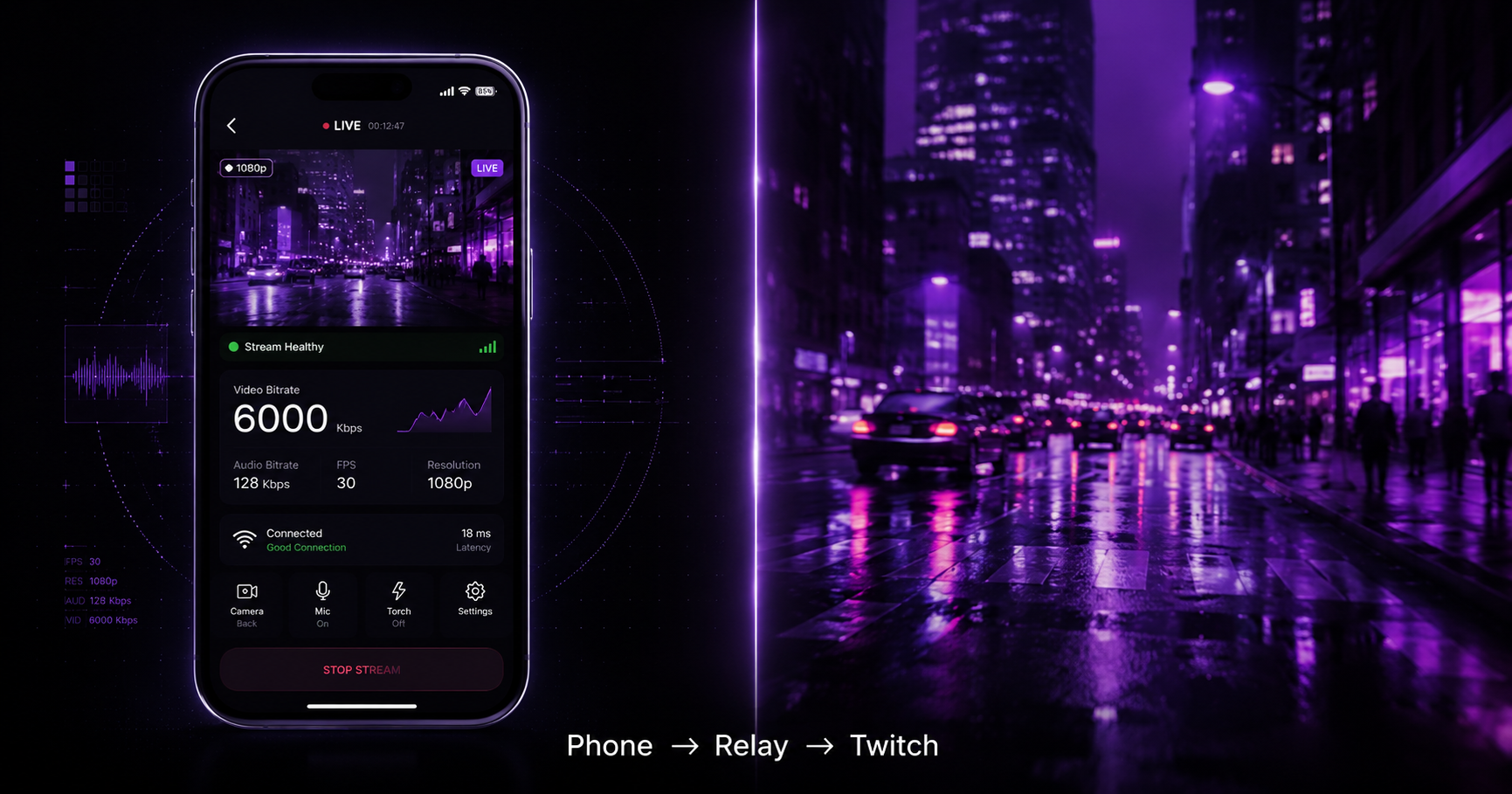
How to go live on Twitch from your phone using an SRT relay
IRL (In Real Life) streaming means broadcasting live from outside — on the street, at events, travelling, or anywhere that is not your desk. The challenge is that mobile networks are unstable, and a standard stream will drop, freeze, or disconnect constantly when you are moving around.
The solution is SRT, a protocol designed for unstable networks that recovers from packet loss and reconnects automatically. Pair that with a relay server and you have the foundation of a solid IRL setup.
How it works
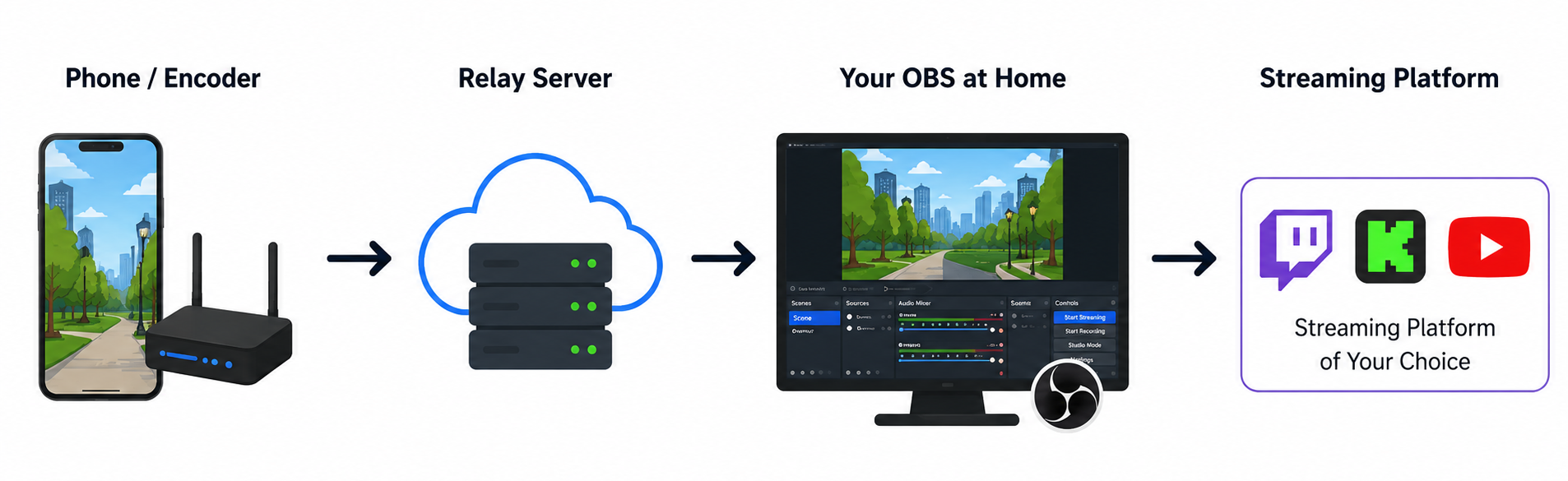
Your phone sends its stream to an IRLHost relay server instead of straight to Twitch. The relay does two things a bare connection cannot: it lets you bond your WiFi and mobile data into one connection for more bandwidth and fewer drops, and — if you run OBS at home — it gives OBS a public address to pull from — so you do not need to port forward your router or expose your home IP. OBS then sends the stream to Twitch or Kick. Your stream key goes in OBS, not in IRLHost.
Phone → IRLHost relay → OBS → Twitch/Kick
Do you need a PC at home?
With IRLHost Plus you need a PC at home running OBS. Your phone sends the stream to IRLHost, and OBS picks it up and sends it to Twitch or Kick. It is the standard IRL streaming setup and works great.
With IRLHost Pro you do not need a PC at all. OBS runs in the cloud on our servers. You set up your scenes, overlays, and stream key from a browser — on your phone, tablet, or any device — and IRLHost handles the rest. Your phone is your only piece of hardware.
Getting started with IRLHost Plus
IRLHost Plus is €11.99/month + VAT and includes the relay server, SRTLA bonding, and Twitch and Kick chat commands. It also includes IRLHost Link, which runs on your home PC and automatically switches OBS to a BRB scene if your signal drops out, then back to live when it recovers. You will need a PC at home running OBS.
Follow the setup guide for your phone:
- iPhone: How to set up Moblin with IRLHost — takes about 2 minutes, QR code handles the Moblin configuration automatically
- Android: How to set up IRL Pro with IRLHost — enter your connection details from the IRL Pro tab in your dashboard
Getting started with IRLHost Pro
IRLHost Pro is €29.99/month + VAT and adds a cloud OBS instance to your relay server. No PC required. Set up your stream from a browser, go live from your phone.
Sign up at irlhost.gg and select Pro when creating your server. Your cloud OBS instance spins up alongside your relay — connect your phone the same way as Plus using the Moblin or IRL Pro guides above.
Tips for a better stream
- SRTLA bonding is enabled by default on IRLHost. To actually benefit from it, make sure your phone has both a mobile data connection and WiFi active at the same time — IRLHost bonds both into one connection automatically.
- Start at 3000-4000 kbps bitrate. Lower if you are in poor signal areas.
- Streaming drains your battery fast. Bring a power bank.
- The built-in microphone works fine to start. A clip-on mic makes a noticeable difference for audio quality.
Get started
Sign up at irlhost.gg. Your relay is ready in minutes. No hardware required beyond your phone.
Want help with your IRL setup?
Leave your email and a seller can contact you with setup help, a walkthrough, or a specialized IRLHost offer.