How to Set Up SRTLA with Moblin and IRLHost
A step-by-step guide to connecting Moblin on iPhone to your IRLHost relay server using SRTLA for stable IRL streaming.
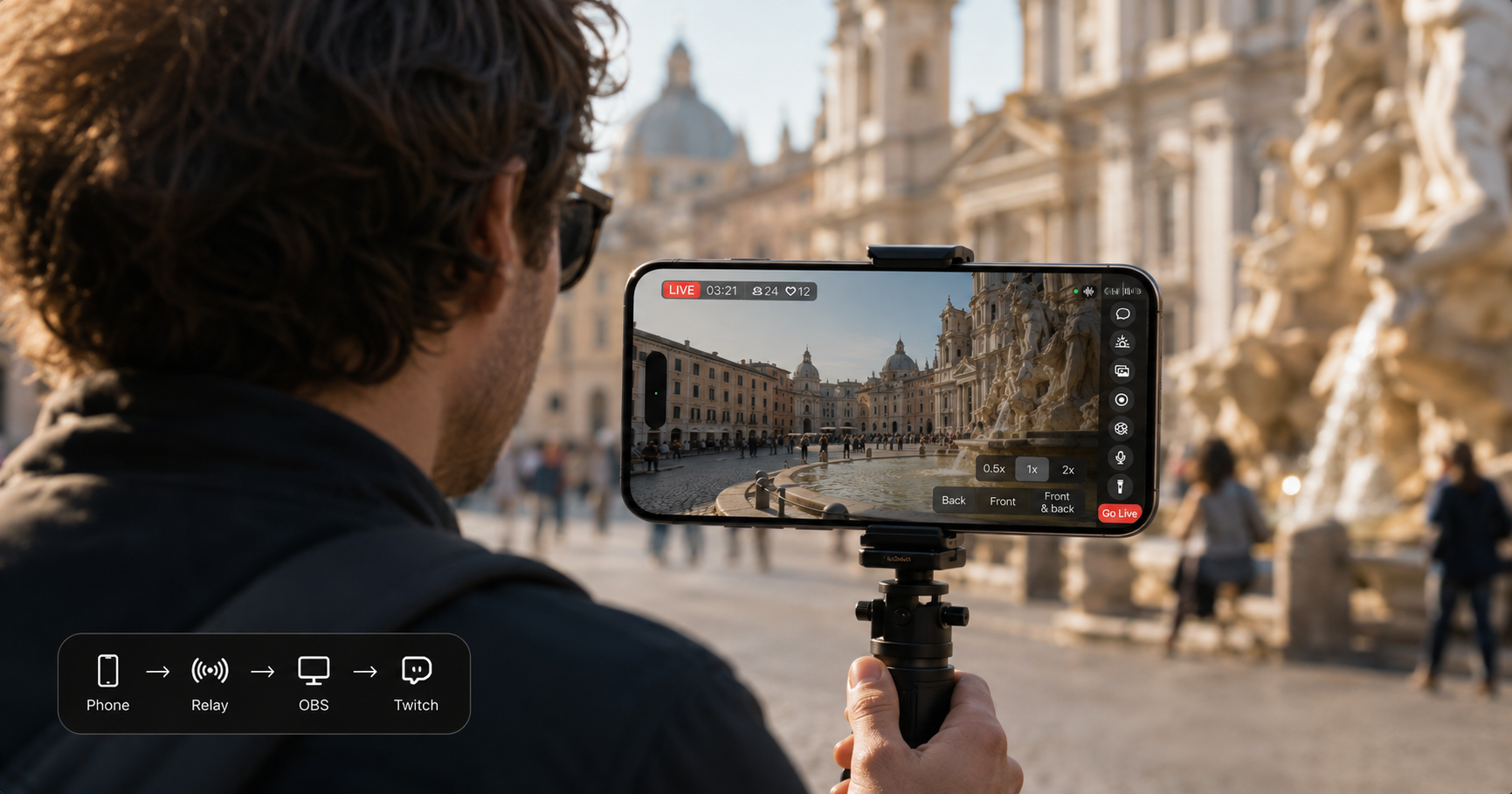
How to stream with Moblin and IRLHost
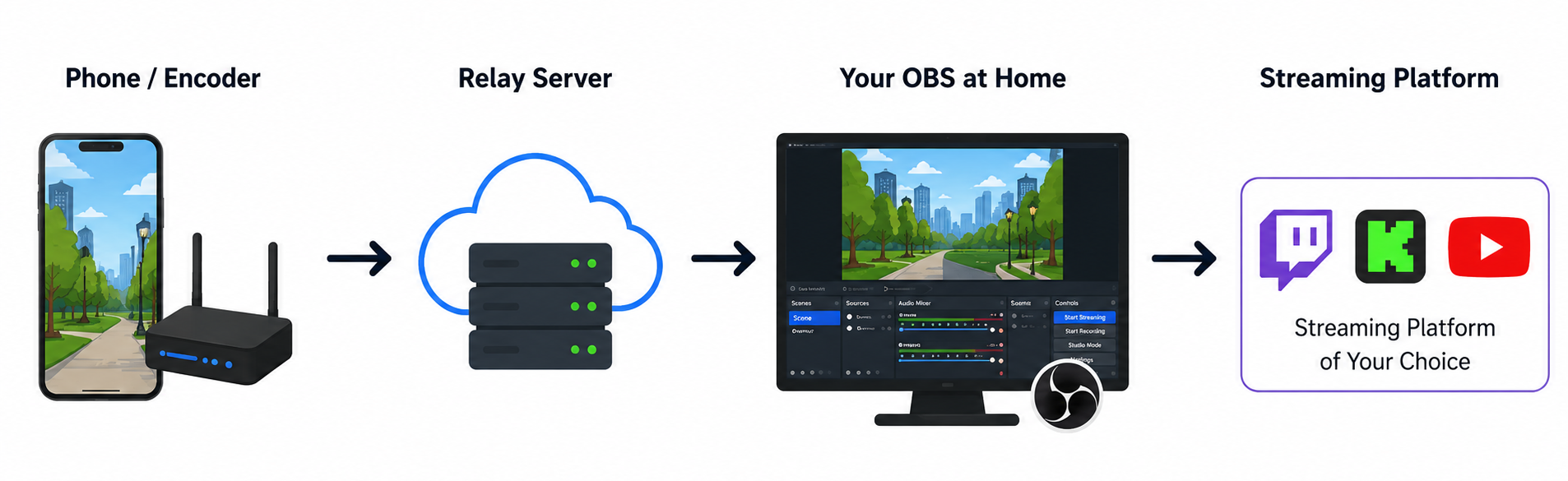
This guide covers pairing Moblin with IRLHost Plus and your own OBS at home. Moblin sends your stream from your iPhone to an IRLHost relay server. The relay lets you bond your WiFi and mobile data into one connection — fewer drops than streaming straight to Twitch or Kick — and gives your OBS at home a public address to pull from — so there is no port forwarding to set up. OBS then sends it to Twitch or Kick. Your stream key goes in OBS — not in Moblin or IRLHost. No PC at home? IRLHost Pro runs OBS for you in the cloud instead.
iPhone (Moblin) → IRLHost relay → OBS at home → Twitch/Kick
What you need
- iPhone with Moblin installed (free)
- A computer at home running OBS
- An IRLHost relay server
- A mobile or WiFi data connection
Step 1: Create your relay server on IRLHost
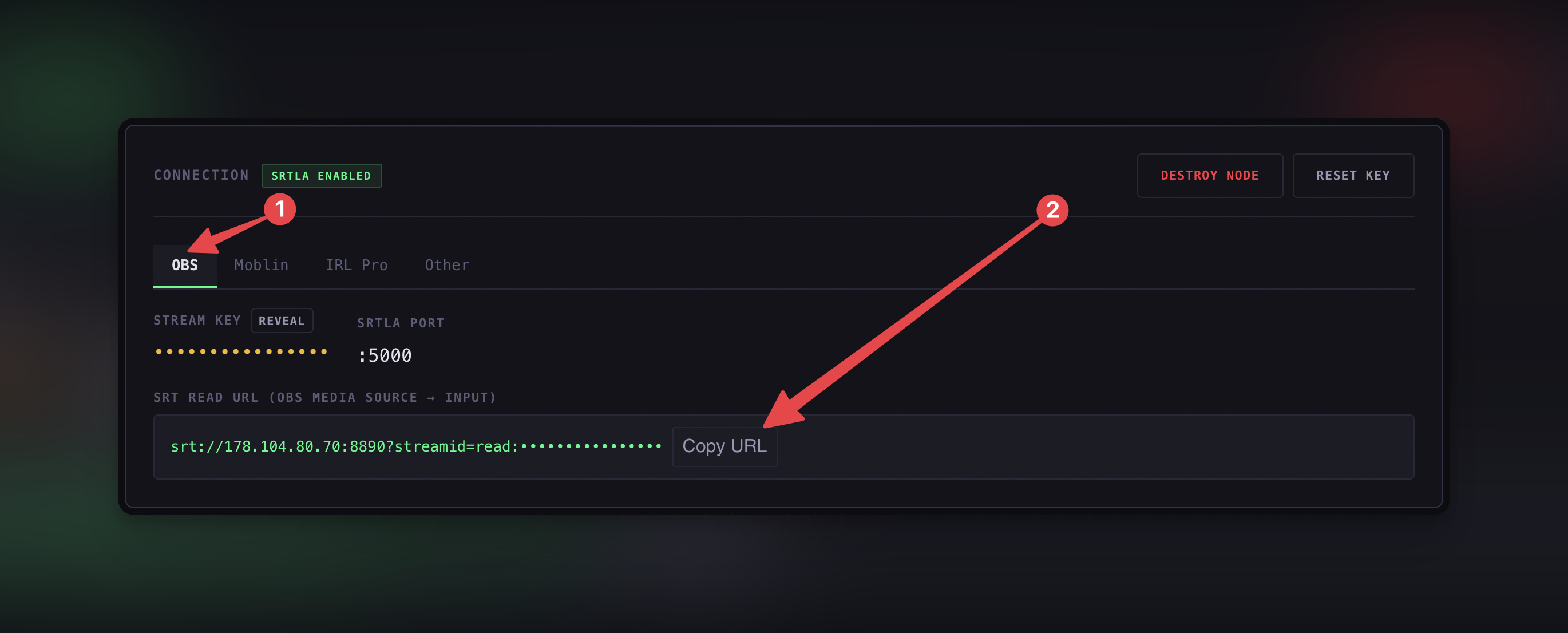
Log in to your IRLHost dashboard at irlhost.gg and create a new relay server. Once it is running, open the server. You will see tabs at the top: OBS, Moblin, IRL Pro, and Other.
Step 2: Copy your OBS URL from the dashboard
Click the OBS tab in your IRLHost dashboard. You will see a field called SRT Read URL. Click Copy URL — you will need this in the next step.
Step 3: Add a Media Source in OBS
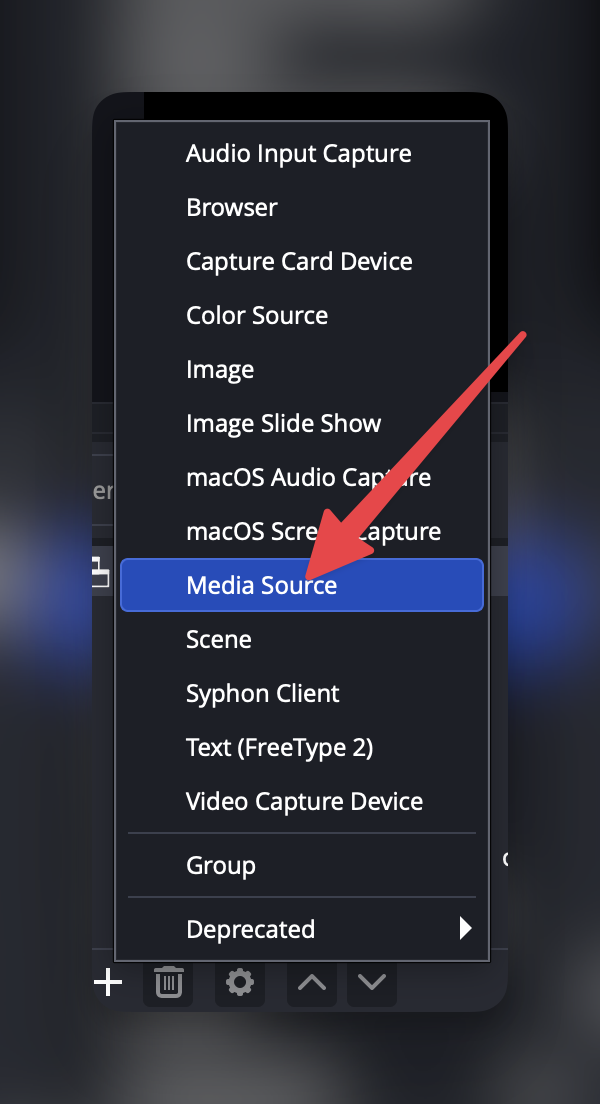
Open OBS on your home computer. In the Sources panel at the bottom of the screen, click the + button.
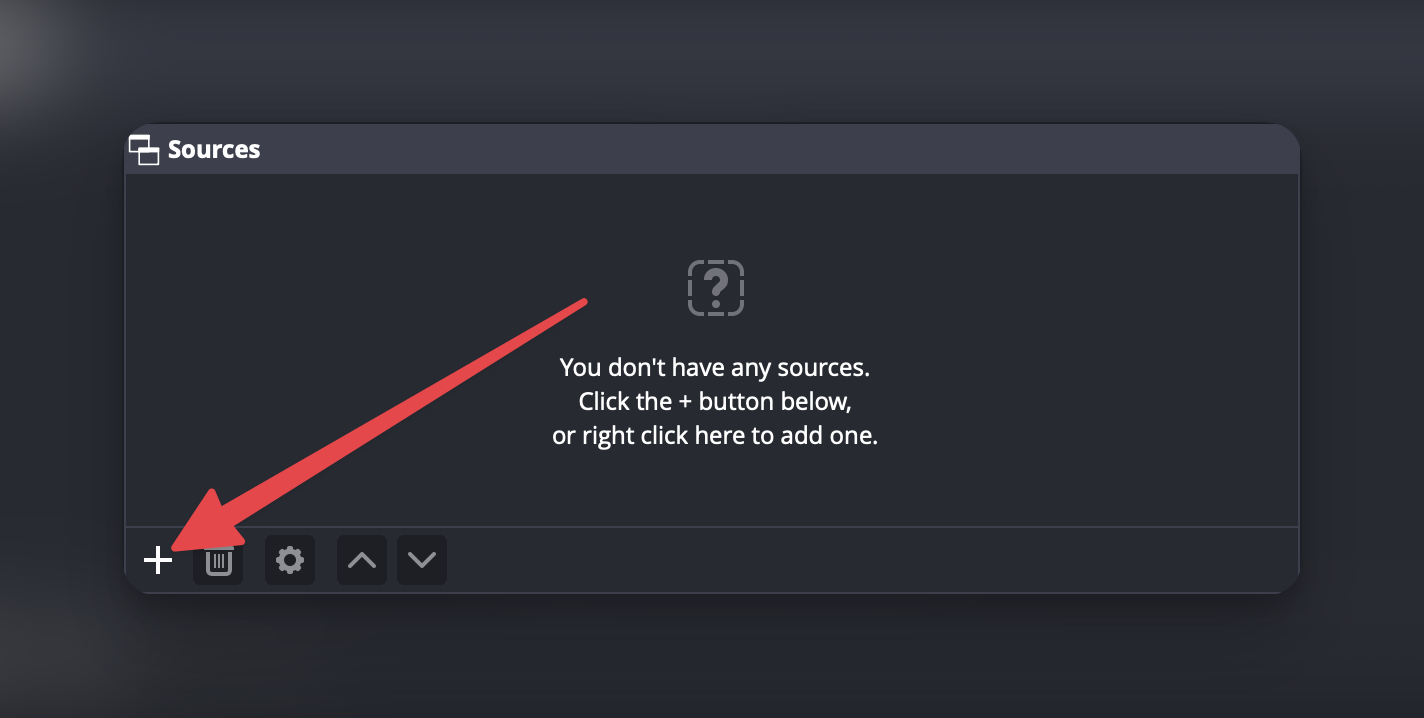
Select Media Source from the list. Give it a name — something like "IRLHost" works fine — and click OK.
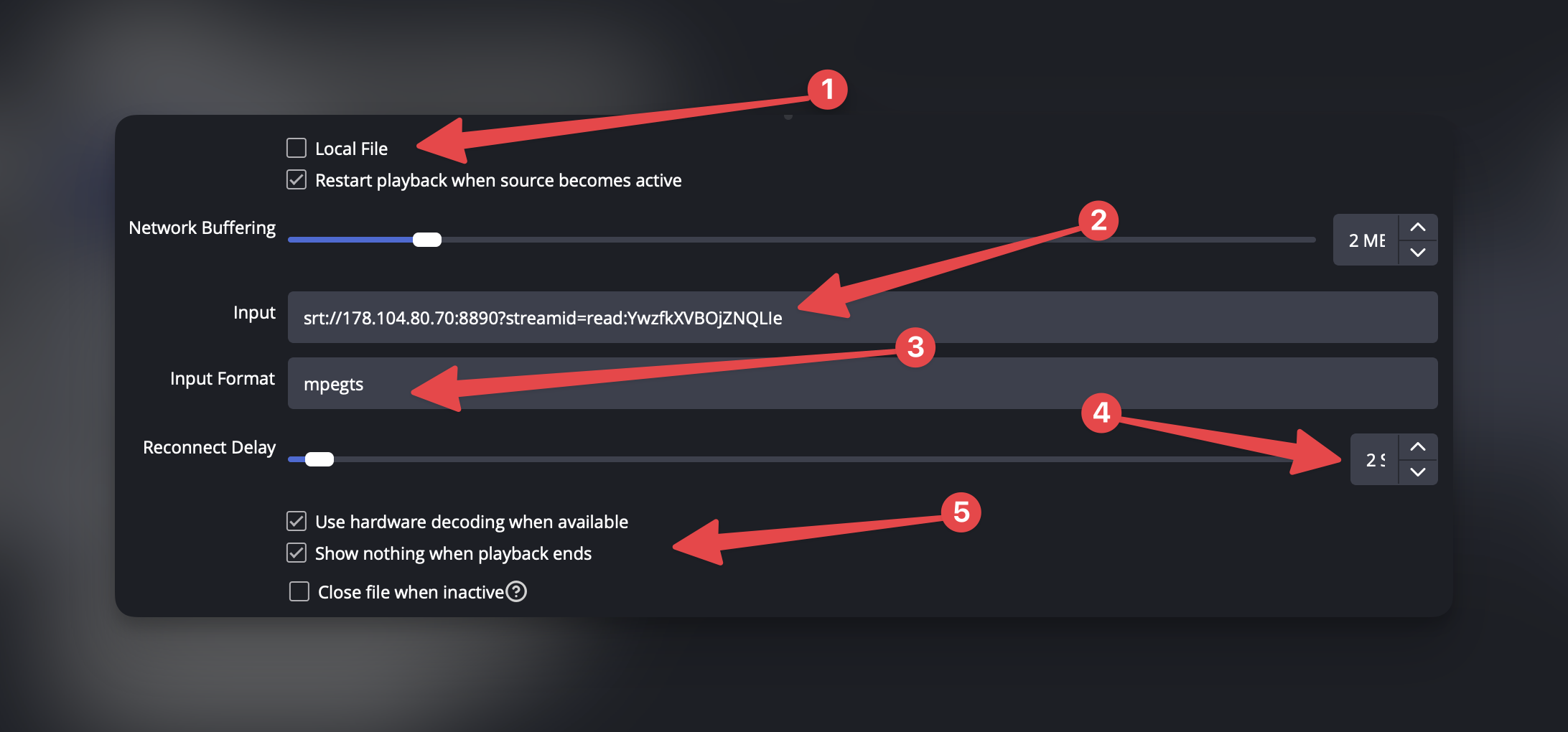
In the Media Source settings that open:
- Uncheck Local File
- Paste your SRT Read URL into the Input field
- Set Input Format to
mpegts - Set Reconnect Delay to
2-3 - Check Use hardware decoding when available
- Check Show nothing when playback ends
Click OK.
Step 4: Connect OBS to Twitch or Kick
Go to Settings → Stream in OBS and select Twitch or Kick. Click Connect Account to log in directly, or enter a stream key manually if you prefer.
Step 5: Configure Moblin with the QR code
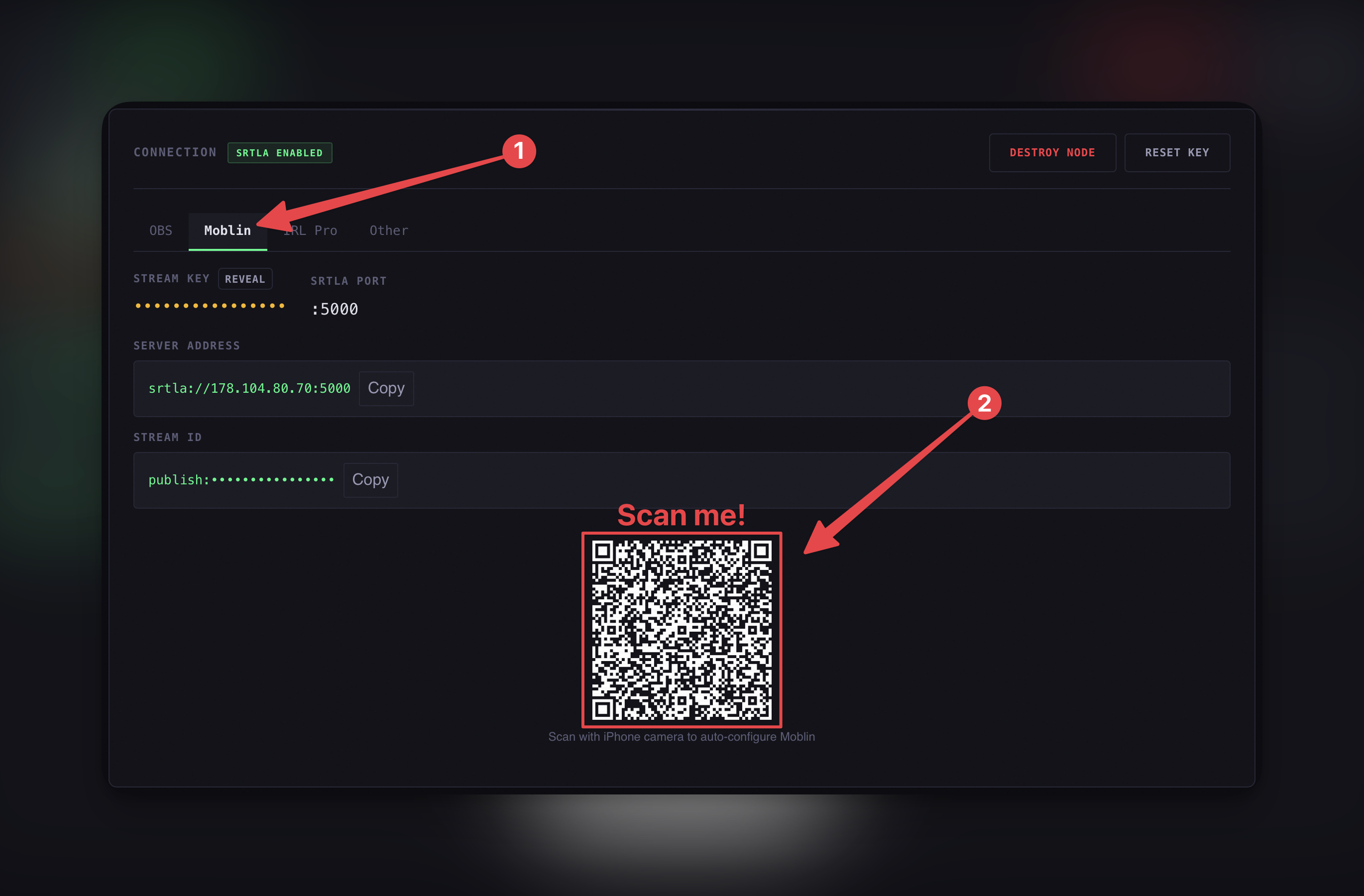
Back in your IRLHost dashboard, click the Moblin tab. At the bottom of the page you will see a QR code. Open your iPhone camera app and scan it. Your phone will prompt you to open Moblin, tap it, and your connection is configured automatically. No copy-pasting URLs, no manual settings.
Step 6: Go live
Start streaming in Moblin. Confirm that OBS is receiving the feed — you should see your phone camera appear in the Media Source. Then click Start Streaming in OBS.
Your IRLHost dashboard shows bitrate and connection health in real time while you stream.
Troubleshooting
OBS not receiving the stream: Make sure you copied the SRT Read URL from the OBS tab, not the server address from the Moblin tab. These are different URLs. Confirm the relay status shows as running in your dashboard.
Black screen in OBS Media Source: Right-click the
Media Source in OBS and select Properties. Confirm the
Input Format is set to mpegts and that Local File is
unchecked.
Drops or low bitrate: SRTLA bonding is enabled by default on IRLHost. If you are in a poor signal area, try increasing latency to 3000-4000ms in Moblin stream settings.
High latency: Choose the IRLHost server region closest to where you are streaming from.
Get started
Sign up at irlhost.gg. Your relay is ready in minutes. No hardware required.
Want help with your IRL setup?
Leave your email and a seller can contact you with setup help, a walkthrough, or a specialized IRLHost offer.