How to Stream IRL from a GoPro or Action Camera
Why Use a GoPro or Action Camera for IRL Streaming?
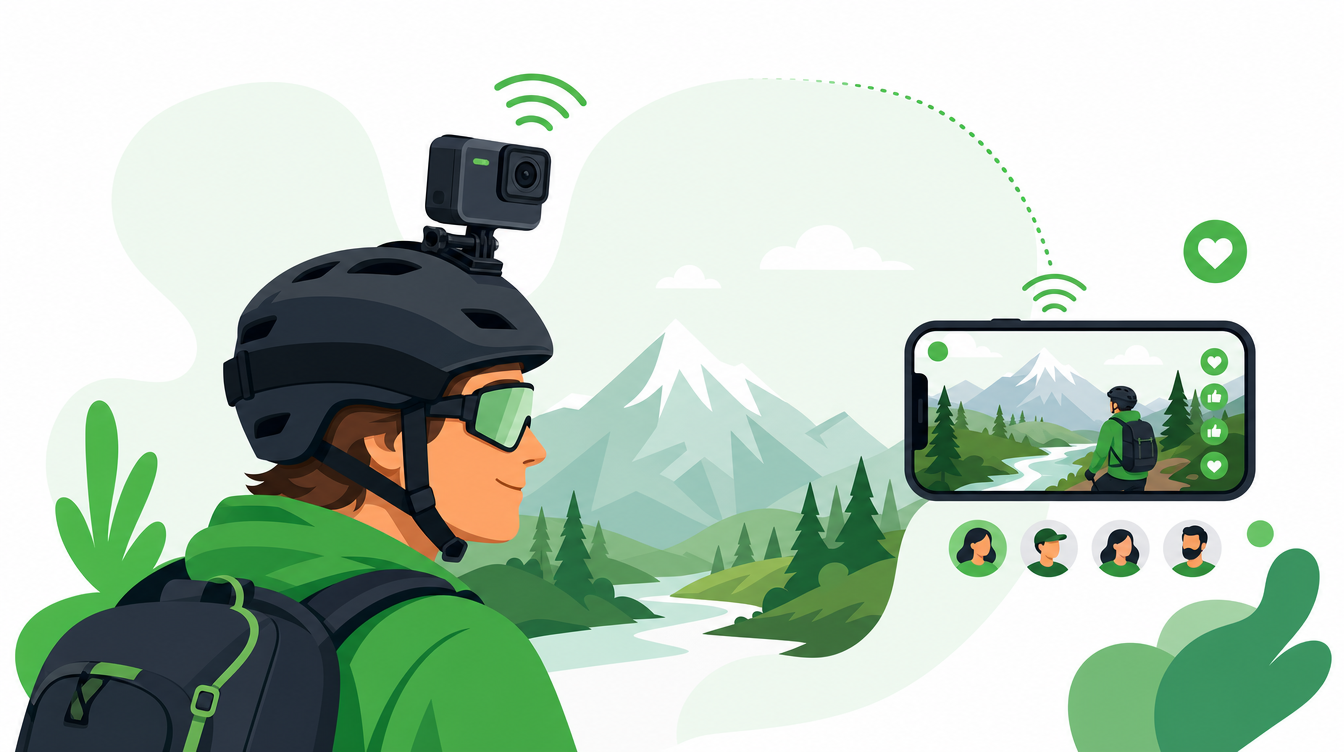
GoPros and other action cameras are built for mobility, durability, and high-quality video. They’re perfect for IRL streaming because they’re compact, weatherproof, and often come with built-in stabilization—ideal for outdoor adventures, sports, or travel vlogs. But streaming directly from a GoPro isn’t as simple as hitting “Go Live.” You need a reliable way to send that feed to Twitch, Kick, or YouTube without lag or dropped frames.
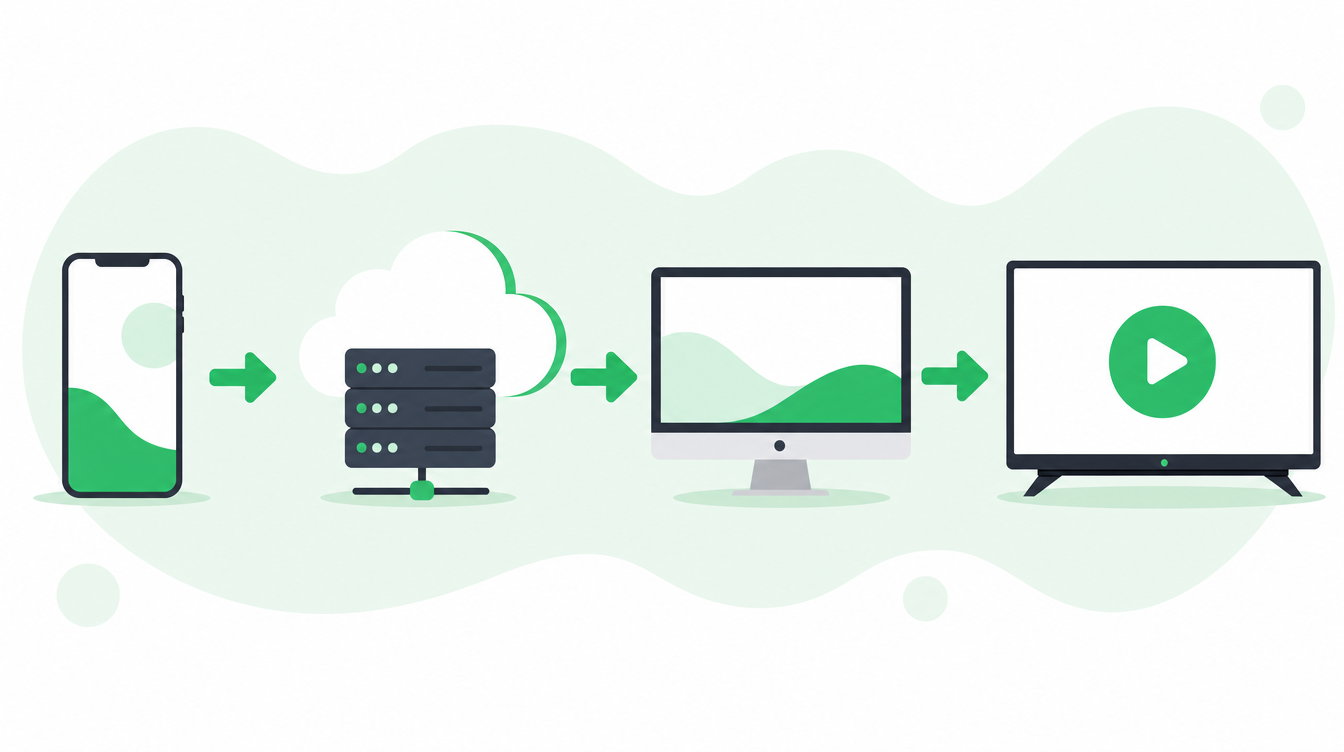
That’s where a cloud-based SRT relay like IRLHost comes in. It bridges the gap between your GoPro’s strong but short-range Wi-Fi and the internet, ensuring a smooth stream even when your connection is shaky. Below, we’ll walk through the full setup, from configuring your GoPro to optimizing your relay for the best performance.
What You’ll Need
Before you start, gather these essentials:
- GoPro (Hero 8 or newer recommended) – Older models lack the Wi-Fi bandwidth needed for stable live streaming.
- Stable power source – A portable USB-C battery pack (like the GoPro Enduro Battery) or a wall adapter if you’re stationary.
- Hotspot or mobile data – Your phone’s hotspot or a dedicated 4G/5G router (e.g., Belabox, Peplink, or TP-Link M7350).
- SRT-compatible streaming app or encoder – Larix Broadcaster (mobile), OBS (desktop), or a hardware encoder like Belabox.
- IRLHost relay – A cloud-based SRT relay to handle your stream’s journey from camera to platform.
- Mounting gear – Chest mount, head strap, or a tripod, depending on your activity.
Pro tip: If you’re using a GoPro, enable “Local Wi-Fi” mode in the app settings. This prevents the GoPro from creating its own Wi-Fi network, which can interfere with your phone’s hotspot.
Step 1: Configure Your GoPro for Live Streaming
GoPros don’t natively support RTMP or SRT out of the box, but you can use third-party apps to bridge the gap. Here’s how to set it up:
On the GoPro itself:
- Open the GoPro app and connect to your camera via Bluetooth/Wi-Fi.
- Go to Settings > Connect > GoPro App and enable “Live Streaming”.
- Set your resolution to 1080p or 4K (stick to 1080p if you’re on a shaky connection).
- Choose a low frame rate (24-30fps) to reduce bandwidth usage.
- Enable HyperSmooth stabilization for smoother footage.
- Turn off Voice Control and Auto Upload to save battery and bandwidth.
Using Larix Broadcaster (Mobile App):
IRLHost supports SRT, and Larix is one of the best mobile SRT encoders for GoPros. Here’s how to connect it:
- Download Larix Broadcaster from the App Store or Google Play.
- Open the app and tap the “+” button to add a new stream.
- Under “Protocol”, select SRT.
- For “Mode”, choose Caller (your GoPro will act as the listener).
- In the “Address” field, enter your IRLHost SRT URL (e.g.,
srt://relay.irlhost.gg:1935). - Set the “Stream ID” to your unique key (provided in your IRLHost dashboard).
- Under “Video”, set the resolution to 1080p30 or lower.
- For “Audio”, use the GoPro’s built-in mic or pair a lavalier mic via Bluetooth.
- Tap “Start Streaming” to begin sending your feed to IRLHost.
Step 2: Set Up Your Internet Connection
A GoPro’s Wi-Fi range is limited (about 30 feet), so you’ll need a reliable way to get that feed online. Here are your options:
Option A: Phone Hotspot (Simplest)
- Use your phone’s hotspot to share its 4G/5G connection with Larix.
- For best results, use a phone with 5G support (e.g., iPhone 12+, Samsung Galaxy S21+).
- Enable “Limit IP Usage” in your hotspot settings to prevent abuse.
- Place your phone in a pocket or small bag to keep it close to the GoPro.
Option B: Dedicated 4G/5G Router (More Stable)
If you’re doing intense activities (biking, hiking, etc.), a dedicated router is better. Some top choices:
- Belabox – Designed for IRL streaming, includes SRT support and bonding.
- Peplink Pepwave – Supports multiple SIM cards and Wi-Fi bonding.
- TP-Link M7350 – Affordable and reliable for basic use.
Pro tip: If your router supports Wi-Fi bonding, pair it with a phone’s hotspot for extra stability. IRLHost supports SRTLA bonding, which combines Wi-Fi and cellular for a rock-solid connection.
Step 3: Optimize Your SRT Stream with IRLHost
IRLHost acts as a relay between your GoPro and your streaming platform (Twitch, Kick, etc.). Here’s how to configure it for the best performance:
1. Sign Up and Set Up Your Relay
- Go to IRLHost.gg and create an account (€11.99/month + VAT).
- Choose a server location closest to you (e.g., Nuremberg (Germany) for Europe, Ashburn (USA) for North America).
- In your dashboard, you’ll get an SRT URL (e.g.,
srt://relay.irlhost.gg:1935) and a Stream ID (a unique key for your stream).
2. Configure IRLHost for GoPro Streaming
IRLHost is codec-agnostic, so it passes H.265/HEVC without modification—perfect for GoPros, which often use HEVC for 4K. Here’s how to set it up:
- In Larix, enter the IRLHost SRT URL in the “Address” field.
- Set the “Stream ID” to your unique key from IRLHost.
- Under “Latency”, set it to 1000-2000ms (lower = less delay, higher = more stability).
- Enable “Packet Loss Recovery” in Larix to handle minor drops.
3. Use IRLHost’s Extras for Better Control
IRLHost includes features to make your stream smoother:
- NOALBS – Automatic scene switching if your primary feed drops (e.g., switches to a backup GoPro or static image).
- Chat Commands – Let viewers control your stream (e.g., “!switch” to change scenes).
- IRLHost Link – Desktop companion app to monitor your stream, adjust settings, and see chat.
Step 4: Stream from IRLHost to Twitch, Kick, or YouTube
Once your feed reaches IRLHost, it’s time to send it to your platform. Here’s how:
Option 1: Using OBS at Home (Recommended for Stability)
Many streamers use OBS on a home PC to receive the SRT feed from IRLHost and then push it to Twitch/Kick. This gives you more control over overlays, alerts, and scene switching.
- Open OBS and go to Settings > Stream.
- Select “Custom Streaming Server”.
- Enter your IRLHost SRT URL (e.g.,
srt://relay.irlhost.gg:1935). - Set the “Stream Key” to your unique Stream ID from IRLHost.
- In OBS, go to Tools > SRT Connection and connect to your IRLHost feed.
- Set “Mode” to Listener.
- Use the same Stream ID as your source (e.g., GoPro or Larix).
- From OBS, stream to Twitch/Kick using their RTMP server (e.g.,
rtmp://live.twitch.tv/app/YOUR_STREAM_KEY).
Pro tip: Set your OBS output to 1080p30 with a bitrate of 4500-6000 kbps for a smooth stream.
Option 2: Directly to Platform (Less Reliable)
Some apps (like Kick’s mobile app) support SRT directly, but this isn’t ideal for GoPros because:
- Kick’s SRT support is limited and may drop frames.
- You lose the ability to add overlays or switch scenes.
- No backup if your connection fails.
For best results, always route your IRLHost feed through OBS at home.
Step 5: Troubleshooting Common Issues
Even with the best setup, IRL streaming can throw curveballs. Here’s how to fix the most common problems:
Problem 1: High Latency (Delay Between Camera and Viewers)
- Cause: SRT latency is too high, or your internet connection is unstable.
- Fix:
- In Larix or OBS, reduce the SRT latency to 500-1000ms.
- Use IRLHost’s NOALBS feature to switch to a static image if the feed drops.
- Test your connection speed with speedtest.net before streaming. Aim for 10+ Mbps upload.
Problem 2: Dropped Frames or Freezing
- Cause: Packet loss due to unstable Wi-Fi or cellular signal.
- Fix:
- Enable “Packet Loss Recovery” in Larix or OBS.
- Use SRTLA bonding (if available) to combine Wi-Fi and cellular.
- Move closer to your hotspot or router to improve signal strength.
- Lower your resolution to 720p30 if frames keep dropping.
Problem 3: GoPro Wi-Fi Disconnects Randomly
- Cause: GoPro’s Wi-Fi and your phone’s hotspot are fighting for bandwidth.
- Fix:
- Disable the GoPro’s Wi-Fi network in the app settings.
- Use a dedicated 4G/5G router instead of a phone hotspot.
- Keep your GoPro and hotspot within 10 feet of each other.
Problem 4: Battery Drain Too Fast
- Cause: GoPros consume a lot of power when streaming.
- Fix:
- Use the GoPro Enduro Battery (lasts 2-3 hours).
- Disable features like Wi-Fi Direct and Bluetooth when not in use.
- Turn off HyperSmooth if you don’t need it.
Advanced Tips for Pro Streamers
Once you’ve mastered the basics, try these pro-level tweaks to elevate your IRL stream:
1. Multi-Camera Setup with Switching
Use NOALBS in IRLHost to automatically switch between cameras (e.g., GoPro + phone) if one feed drops. You can also manually switch scenes using:
- IRLHost Link desktop app
- Twitch chat commands (e.g.,
!switch) - Kick chat commands (if enabled)
2. Backup Audio Solutions
GoPro mics are decent but not studio-quality. For better audio:
- Use a lavalier mic (e.g., Rode Wireless Go II) synced to your phone.
- Route the mic’s audio through OBS and mix it with your GoPro’s feed.
- For GoPros without a mic input, use a Bluetooth adapter (like the GoPro Shorty).
3. GPS and Telemetry Overlays
Add real-time data to your stream with overlays:\p
- Use Streamlabs or Streamelements to add speed, altitude, or location.
- Embed a Google Maps widget to show your route.
- Display heart rate if you’re using a fitness tracker (e.g., Garmin).
4. Remote Control with IRLHost Link
The IRLHost Link desktop app lets you:
- Monitor your stream’s health (packet loss, bitrate).
- Switch scenes or restart your stream remotely.
- Read and respond to chat without touching your phone.
- Adjust SRT latency on the fly.
GoPro Alternatives for IRL Streaming
While GoPros are the most popular, they’re not the only option. Here are other cameras that work well for IRL streaming:
1. Insta360 Go 3
- Smaller and lighter than a GoPro.
- Supports Wi-Fi streaming via the Insta360 app.
- Can be mounted on your body for unique angles.
2. DJI Action 4
- Better low-light performance than GoPro.
- Supports external mics via USB-C.
- More stable in windy conditions.
3. Sony ZV-E10 (Mirrorless Camera)
- Professional-grade video quality.
- Interchangeable lenses for different scenarios.
- Requires an external encoder (like OBS) for streaming.
4. DJI Pocket 3
- Compact and easy to carry.
- Built-in gimbal for smooth footage.
- Supports Wi-Fi streaming to third-party apps.
Final Checklist Before You Go Live
Run through this list before starting your stream to avoid mid-stream disasters:
- Test your connection – Run a speed test and check for packet loss.
- Charge all batteries – GoPro, phone, hotspot, and any mics.
- Position your hotspot/phone – Keep it close to the GoPro (within 10 feet).
- Enable “Low Power Mode” on your phone – Prevents background apps from killing your stream.
- Start your stream in OBS first – Check audio levels and scene transitions before going live.
- Monitor IRLHost Link – Watch for packet loss or high latency.
- Have a backup plan – A second GoPro, static image, or pre-recorded clip in case of failure.
Why Choose IRLHost for GoPro IRL Streaming?
IRLHost isn’t the only SRT relay out there, but it’s one of the few built specifically for IRL streamers. Here’s why it stands out:
- European company, 100% green energy hosting – Eco-friendly and reliable servers in Nuremberg, Helsinki, Ashburn, Hillsboro, and Singapore.
- SRTLA bonding – Combine Wi-Fi and cellular for a rock-solid connection.
- Codec-agnostic – Passes H.265/HEVC without modification, perfect for GoPros.
- NOALBS automatic scene switching – Never lose your stream mid-broadcast.
- Chat commands for Twitch and Kick – Let viewers control your stream.
- IRLHost Link desktop companion – Monitor and control your stream from your PC.
- Affordable – €11.99/month + VAT, with no hidden fees or contracts.
Other SRT relays (like Own360 or Restream) don’t offer the same IRL-specific features. If you’re serious about streaming from a GoPro or action camera, IRLHost is the best tool for the job.
Getting Started with IRLHost
Ready to set up your first IRL stream from a GoPro? Here’s how to get started:
- Sign up at IRLHost.gg for a 7-day free trial.
- Choose a server location closest to you.
- Download Larix Broadcaster (mobile) or set up OBS (desktop).
- Configure your GoPro (1080p30, 4500 kbps bitrate).
- Connect to IRLHost using your SRT URL and Stream ID.
- Test your stream in a private OBS scene before going live.
- Go live on Twitch, Kick, or YouTube with confidence.
IRLHost’s free trial lets you test everything before committing. No credit card required—just sign up and start streaming.
TL;DR: Your GoPro IRL Streaming Setup in 5 Steps
Short on time? Here’s the quickest way to stream from a GoPro:
- Configure your GoPro – 1080p30, HyperSmooth on, Wi-Fi off.
- Connect to a hotspot or router – Use your phone or a dedicated 4G/5G device.
- Stream to IRLHost via Larix or OBS – Use SRT with a 1000-2000ms latency.
- Route to Twitch/Kick via OBS – Add overlays and alerts at home.
- Monitor with IRLHost Link – Adjust settings and switch scenes on the fly.
Over to You
Streaming IRL from a GoPro or action camera is easier than ever—thanks to tools like IRLHost that handle the heavy lifting of SRT relaying. Whether you’re hiking, biking, or just exploring your city, you can now share every moment in real time without worrying about dropped frames or latency.
Ready to take your streams to the next level? Sign up for IRLHost today and start streaming with confidence.
CTA
Set up your first GoPro IRL stream in minutes with IRLHost. Try it free for 7 days—no credit card required. Get started now →